Tuesday, February 17, 2009

Dock Evolution Mail to notification area in Ubuntu

If you are using Evolution for your email needs then you must be aware that Evolution doesn't dock. So either you leave it open, in which case it will be continuously cluttering you window list, or you just close it. But then you wont get new mail notifications. But there is a third option, although Evolution doesn't dock itself, you can use another application called alltray to dock it. alltray can be used to dock any open window to notification area. Its really simple to install and use.
you can install it using
sudo apt-get install alltray
after installing just run alltray from command line or Alt-F2 using command
alltray
a dialog will appear asking you to select window that you want to dock. it will also change you cursor. when you select a window it will be immediately docked to notification area.If you dont like this approach and want an application to have notification icon as soon as it starts then you can launch an application with alltray. So for Evolution you can write following command:
alltray evolution
this will start evolution and immediately dock it to notification area.
if you want application to show when it starts then you can use --show option for alltray
alltray --show evolution
There are other alltray options that you may want to use e.g. --sticky for showing application on all desktops, --no-alltray to stop alltray from adding alltray to applications title and etc. use alltray -h for details of available options. You can also change edit the menu entry for evolution in Applications->internet to this command so that whenever you launch evolution it has dock i con

Tuesday, February 3, 2009

Converting .rpm packages to .deb for Ubuntu

If you want to install a package on Ubuntu, but can only find .rpm for it and no .deb then you can use Alien to convert that rpm into a .deb package.
Alien is a computer program that converts between different Linux package formats. It supports conversion between Linux Standard Base, RPM, deb, Stampede (.slp), Solaris (.pkg) and Slackware (.tgz) packages. It is also capable of automatically installing the generated packages, and can try to convert the installation scripts included in the archive as well. The latter feature should be used with caution since Linux distributions may vary significantly from one another, and using install scripts automatically converted from an alien format may break the system.
http://en.wikipedia.org/wiki/Alien_(software)
Alien can be installed from universe repository. You will need to enable it first. After enabling universe repo do:
sudo apt-get update
sudo apt-get install alien
This will install alien. After installing alien you can convert rpm to .deb using command
sudo alien -k package-name.rpm
This will generate a new file named package-name.deb. The -k option is used to keep the version number, otherwise alien will add a 1 to it. Using --scripts option will also include scripts from rpm into .deb.
sudo alien -k --scripts package-name.rpm

Sunday, November 9, 2008

Installing Sun Java 6.0 on Ubuntu

Ubuntu is defaultly deployed with GNU libgcj JVM which doesn't work with some applications, for example Eclipse. Also in my experience GNU libgcj JVM is much slower than Sun JRE.
Installing Sun Java 6 JRE is simple. Just issue the following command from shell:
apt-get install sun-java6-jre sun-java6-bin sun-java6-plugin sun-java6-jdk
You will need to be root or use "sudo" to perform this operation. You can skip package sun-java6-jdk if you dont plan on doing development in Java.

Once these packages are installed you can use Alternatives to make sun java your default JVM. To do this issue following command from shell:
update-alternatives --config java
You will get a screen like following:

The * sign means that this JVM is default. Enter the number for Sun JRE which in my case is 3. Now you can check your java version using: java -version

Tuesday, November 4, 2008

Virtual CD software for Windows XP from Microsoft?

I needed to add an ISO image as virtual drive to my system and I was looking for some free software to do the job. During my search i found out that there is a software from MS, called WinXP Virtual CD control panel, to do the job but it is not listed at Microsoft Download Center. You can download it from here. It is very primitive software but gets the job done nicely.

Installation Instruction (from readme.txt)
  1. Copy VCdRom.sys to your %systemroot%\system32\drivers folder.
  2. Execute VCdControlTool.exe
  3. Click "Driver control"
  4. If the "Install Driver" button is available, click it. Navigate to the %systemroot%\system32\drivers folder, select VCdRom.sys, and click Open.
  5. Click "Start"
  6. Click OK
  7. Click "Add Drive" to add a drive to the drive list. Ensure that the drive added is not a local drive. If it is, continue to click "Add Drive" until an unused drive letter is available.
  8. Select an unused drive letter from the drive list and click "Mount".
  9. Navigate to the image file, select it, and click "OK". UNC naming conventions should not be used, however mapped network drives should be OK.


I have used it with ISO images and it works very well. dont know if it works with other formats

Sunday, October 5, 2008

Installing and using knockd to allow temporary SSH access

knockd is a port-knock server which runs silently on your machine until it sees a specific port-sequence. When it sees the specific port sequence it performs an action associated with that sequence. Port sequence and the associated actions can be easily configured in knockd's configuration file /etc/knockd.conf.
In below example we will use knockd to, upon seeing a specific sequence of port knocks, open a "hole" in our firewall to allow ssh access from outside. Dont worry this is not insecure as you will be the only one knowing that port sequence, unless ofcourse you share that sequence with some one else :)
To accomplish this we will need to do following:
  • install knockd
  • configure it to allow ssh access on seeing a specific port sequence
  • configure it to close ssh access on seeing a different port sequence
Install knockd using: sudo apt-get install knockd. This installation will create a file /etc/knockd.conf.
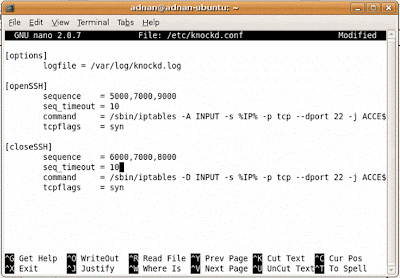
Open this file using “sudo nano /etc/knockd.conf”.The file will look something like this:

----------------------------------------------------------------------------------------------------
[options]

logfile = /var/log/knockd.log

[openSSH]

sequence = 7000,8000,9000

seq_timeout = 5

command = /sbin/iptables -A INPUT -s %IP% -p tcp --dport 22 -j ACCE$

tcpflags = syn

[closeSSH]

sequence = 9000,8000,7000

seq_timeout = 5

command = /sbin/iptables -D INPUT -s %IP% -p tcp --dport 22 -j ACCE$

tcpflags = syn

-----------------------------------------------------------------------------------------------------

we need to change the sequence and seq_timeout lines for both, [openSSH] and [closeSSH] sections. This is just a precautionary measure as sequence 7000,8000,9000 is a very common and well known. So change the file to look as one below. You can use any sequence that you like but avoid commonly used ports. You can even use ports that are closed/blocked on ur system as knockd works on link layer and will see all the traffic destined for your system even for closed or blocked ports. Dont change command, tcpflags or logfile options. After you have changed the file save it.


Now you need to edit your /etc/default/knockd. Open that file using “sudo nano /etc/default/knockd”. Change it to match the following. This will ensure that knockd is always run as daemon at init i.e at system startup.

The “-i eth0” will ensure that knockd listens on eth0 for port knock sequence. You can change it to whatever interface that you want knockd to listen at.

Now start knockd. You need to do this just this one time.

sudo /etc/init.d/knockd start

Now you are up and running :). knockd will open ssh access for you on seeing the specific port knock sequence. To try this try SSHing this computer from any other machine connected to this computer on interface that you selected in /etc/default/knockd which in my case is eth0. Your firewall will not allow access. To get access you will need to knock at the doors of your computer and for that you will need knock client on the machine that you are using to do ssh. If you are using a linux machine install knockd package and if you are using windows machine you can use windows client from here.

To knock issue following command ( replace 192.168.1.2 with the IP of your computer)

knock 192.168.1.2 5000 7000 9000

This will open ssh access for you. Now use ssh to access your gateway. When you are finished issue following command to close the ssh access.

knock 192.168.1.2 6000 7000 8000

Wednesday, September 3, 2008

Installing Ruby and Rails on Ubuntu

Ruby is not installed on Ubuntu out of the box. To get Rails working you will need to install ruby and some other things first. Simply enter following line on shell prompt

sudo apt-get install ruby ruby1.8-dev irb rubygems build-essential libopenssl-ruby

This will install ruby and ruby gems on your machine. To install rails enter following on shell prompt

sudo gem install rails rake mongrel


this will install rails and mongrel, a rails web server, on your system. If you dont need mongrel you can remove mongrel from the above line.

Mysql + Mysql Administrator + Mysql Query Browser on Ubuntu

I am using Ubuntu(Hardy).
To install mysql use apt-get. Issue command "sudo apt-get install mysql-server mysql-client libmysqlclient15-dev". This will install mysql server on your system. You can start the server using "sudo /etc/init.d/mysql start" and similarly stop it using "sudo /etc/init.d/mysql stop".

Note: RedHat users install package mysql-devel instead of libmysqlclient15-dev

To create and manage databases you can use command line utility 'mysqladmin' installed with mysql server. If you dont like command line then u can install MySql Administrator to manage mysql databases using GUI. To install MySql Administrator issue command "sudo apt-get install mysql-admin".

To connect to databases and execute queries you can use command line utitlity 'mysql' or you can install MySql Query Browser using "sudo apt-get install mysql-query-browser".

MySql Administrator and MySql Query Browser can be run from command line using commands 'mysql-admin' and 'mysql-query-browser' respectively or you can access them from Applications->Programming system menu.

Note: To install these apps you may need to enable universe repository for apt-get. To do this edit /etc/apt/sources.list and uncomment all lines of the form
deb http://xxxx.ubuntu.com/ubuntu/ hardy universe. To uncomment remove '#' from start of these lines.