
Tuesday, March 30, 2010
A nice tool for conducting programming interviews
I have been interviewing people for developer jobs for some time now. At our company most interviews are conducted on phone because most of the candidates are located out of station. I have always found it difficult to judge a person's programming ability on phone because I think its easier to write code than to "speak" it. I recently came across a blog post on interviewing for programming jobs. It is an interesting post but I dont know how helpful it will be for me in future but there's a tool mentioned somewhere in there for conducting online coding interviews. This online tool at http://www.seemikecode.com/ seems interesting. I will try to use it for few interviews and then see how useful it really is.


Tuesday, January 19, 2010
Using ctags with Vim
I have been using vim for all my coding related tasks for a year now. I heard of ctags a while ago but I never tried using it. But recently I got tired of moving between files manually -looking for functions and other stuff- so I decided to give ctags a try. I never expected for it to be so simple. Just install ctags:
Using Vim with ctags is straight forward. Vim has builtin support for ctags so now you just need to issue vim command from the directory where you generated the tags file using ctags.
If you have more than one tags files or you dont want to always use vim from one directory then add following line to your .vimrc file in your home directory:
sudo apt-get install ctagsGenerate tags file. To do this go to the main directory of your source tree. There just issue the command:
ctags -Rthis will recursively traverse the source directory and generate a tags file containing information about all symbols -functions and variable- in the source files.
Using Vim with ctags is straight forward. Vim has builtin support for ctags so now you just need to issue vim command from the directory where you generated the tags file using ctags.
vim src/asdf/test.cNow in the file move a cursor to some function or variable and press Ctrl-]. This will take you to the definition of that function or variable. To go back to where you came from press Ctrl-T, this will take you back to where your were before pressing Ctrl-]
If you have more than one tags files or you dont want to always use vim from one directory then add following line to your .vimrc file in your home directory:
set tags=tags;/
Monday, January 18, 2010
Connect To PTCL EVDO(Evo) from Ubuntu Linux
PTCL Evo connection comes with ZTE AC2726 USB modem. Its really easy to use it on Windows and Mac as there drivers are provided in the modem's memory but to use it on Linux is a bit tricky. Recently I succeeded in installing and configuring it on Ubuntu 9.10 and below are the steps which worked for me.
When you attach the modem to your linux machine it gets detected as a usb storage device and not as a usb modem. To use it as usb modem we need to convert it from usb-storage device to usbserial device in ubuntu. To do this I used -modeswitch utility which can be installed using following command:
UPDATE: if you are using Ubuntu 10.04 or later you can use a simpler method mentioned here
When you attach the modem to your linux machine it gets detected as a usb storage device and not as a usb modem. To use it as usb modem we need to convert it from usb-storage device to usbserial device in ubuntu. To do this I used -modeswitch utility which can be installed using following command:
sudo apt-get install usb-modeswitchUnplug the modem and plug it back in. Use lsusb command to see list of usb devices attached to your system. You should see a line similar to
Bus xxx Device xxx: ID 19d2:fff1Here 19d2 is vendor id for ZTE and fff1 is the device id for AC2726. If you dont see this line or see one with device id fff5 then you will need to restart your system. Now issue following command to load proper driver module in kernel:
sudo modprobe usbserial vendor=0x19d2 product=0xfff1And thats it. Your modem is ready to be used. You will now need a dialer app to dial and establish the connection. I used gnome-ppp as it has the ability to dock. To install gnome-ppp issue following command:
sudo apt-get install gnome-pppYou can now run gnome-ppp. You will need to run it as root. After it starts click on setup. On setup window click Detect so that it can detect your usb modem. Set type to be USB MODEM and speed to be 460800. Set phone line to Tone and volume to off. Now go to options tab and check the following:
- Dock in notification area
- Auto reconnect
- Ignore terminal strings..
UPDATE: if you are using Ubuntu 10.04 or later you can use a simpler method mentioned here
Saturday, August 15, 2009
Free office space, room, pocket money, internet, food and advice for startups
Unfortunately its for UK or European startups only but its a great thing. Check out more details here http://blog.businessofsoftware.org/2009/08/the-accidental-incubator.html
Tuesday, July 28, 2009
Enable syntax higlighting for Vim in Ubuntu
Ubuntu comes with a minimal Vim installation known as tiny Vim. This doesn't have features like syntax highlighting and GUI. Tiny Vim is more compatible with Vi because most of the features that Vim adds to Vi are not there. So people looking for standard Vi may like it but I like to have syntax higlighting and to use arrow keys to move in the document rather than ctrl key. So if you want these features you will need to install complete Vim. You can do that using the following command:
sudo apt-get install vim-fullif at some point you want to turn highlighting off, issue following command from inside vim:
:syn offto turn it back on you can use:
:syn onGood luck
Wednesday, May 20, 2009
Solving Skype audio problem in Ubuntu 9.04 (Jaunty)
I installed Skype on Jaunty but my audio was not working even though i was able to record my voice using Sound Recorder. After going through many web pages and trying many solutions the one that finally worked for me is this.
stop skype, open terminal and issue following commands
stop skype, open terminal and issue following commands
- sudo killall pulseaudio
- sudo apt-get remove pulseaudio
- sudo apt-get install esound
- sudo rm /etc/X11/Xsession.d/70pulseaudio
Tuesday, February 17, 2009
Dock Evolution Mail to notification area in Ubuntu
If you are using Evolution for your email needs then you must be aware that Evolution doesn't dock. So either you leave it open, in which case it will be continuously cluttering you window list, or you just close it. But then you wont get new mail notifications. But there is a third option, although Evolution doesn't dock itself, you can use another application called alltray to dock it. alltray can be used to dock any open window to notification area. Its really simple to install and use.
you can install it using
 If you dont like this approach and want an application to have notification icon as soon as it starts then you can launch an application with alltray. So for Evolution you can write following command:
you can install it using
sudo apt-get install alltrayafter installing just run alltray from command line or Alt-F2 using command
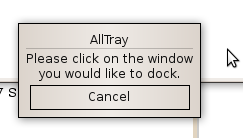
alltraya dialog will appear asking you to select window that you want to dock. it will also change you cursor. when you select a window it will be immediately docked to notification area.
 If you dont like this approach and want an application to have notification icon as soon as it starts then you can launch an application with alltray. So for Evolution you can write following command:
alltray evolutionthis will start evolution and immediately dock it to notification area.
if you want application to show when it starts then you can use --show option for alltray

alltray --show evolutionThere are other alltray options that you may want to use e.g. --sticky for showing application on all desktops, --no-alltray to stop alltray from adding alltray to applications title and etc. use alltray -h for details of available options. You can also change edit the menu entry for evolution in Applications->internet to this command so that whenever you launch evolution it has dock i con
Subscribe to:
Posts (Atom)